Best Free Parental Control Apps for Android in 2026
Best Free Parental Control Apps for Android in 2026: A Parent's Complete Guide
Choosing a parental control app is harder than it looks. The market is full of products with overlapping names, vague feature lists, and pricing structures that only reveal themselves after signup. This guide cuts through that.
It covers five of the most relevant Android parental-control options available in 2026 — what each one actually does, what's genuinely free, what costs money, and what trade-offs come with each approach. Whether you're looking to manage screen time, filter inappropriate content, share location, or simply understand how your child is using their phone, this guide is designed to give you the information to decide.
Quick disclosure: This article is published on the Ximos blog. Ximos is one of the five apps reviewed below. It is reviewed honestly, including its limitations, and is not described as the best option for every family.
Quick Answer: What's the Best Parental Control App Right Now?
There is no single best app — the right choice depends on what problem you're actually trying to solve:
- For setting app limits and screen-time schedules on a younger child's device: Google Family Link — free, well-integrated with Android, and straightforward to set up.
- For detecting risky content in messages and social media without reading every message: Bark — focuses on alerting parents to potential issues rather than giving constant visibility.
- For the most comprehensive all-in-one paid suite: Qustodio — strong content filtering, detailed reports, and multi-platform support.
- For live visibility into a child's screen, camera, or surroundings, with no subscription: Ximos — two Android apps (Ximos for parent, XimosKid for child), pay-as-you-go live streaming, with most non-streaming features permanently free.
- For a basic, single-device setup for a young child: Android's built-in Digital Wellbeing tools, or a dedicated launcher like Kids Place.
The rest of this guide explains each of these in detail.
What Should a Good Parental Control App Actually Do?
Parental control is an umbrella term that covers several different functions. Understanding which category you actually need helps narrow the choice considerably.
Screen-Time Management
Screen-time tools let you set daily limits on overall device usage or on specific apps. The most useful implementations let you:
- Set different daily limits per app (e.g., 1 hour for YouTube, unlimited for a homework app).
- Schedule "downtime" periods where the device is locked or limited (e.g., no games after 9 PM).
- See a report of how much time was spent on each app each day.
Screen-time management is a passive, scheduled control — it runs automatically without the parent needing to be actively involved.
Content and Website Filtering
Content filtering blocks access to categories of websites or specific URLs — typically adult content, gambling, violence, or other material deemed inappropriate for children. Filters range from simple keyword-based DNS blocking to sophisticated AI-driven content analysis.
Important limitation to understand: Most Android-level content filtering works at the browser or DNS level. Determined teenagers can often work around app-level filters using a VPN or a second browser. No content-filtering solution is completely airtight on an open Android device.
Location Sharing and Family Safety
Family location features let a parent see where their child's device is on a map. These range from:
- Simple location pins (where is the device right now?)
- Historical location traces (where has it been today?)
- Geofencing (alert me if the device leaves or enters an area)
Location sharing is one of the most requested parental features and one of the most sensitive from a trust and privacy standpoint.
Monitoring and Visibility Tools
"Monitoring" covers a wide spectrum — from reading the content of a child's messages (deep monitoring, legally and ethically complex) to seeing a live mirror of the device's screen (surface-level visibility) to reviewing usage statistics (passive reporting). Different apps sit at very different points on this spectrum.
Alerts and Remote Actions
Beyond passive reporting, some apps allow parents to:
- Push a notification or message to the child's screen.
- Send an alert that demands acknowledgement.
- Remotely lock the device.
- Take a photo or short video from the device's camera.
- Control the screen in real time.
The level of real-time control varies significantly between products and has significant privacy implications.
Free vs. Paid: What You Actually Get Without Spending Money
Most parental control apps offer a "free" tier that is either time-limited (a 7- or 30-day trial) or feature-locked (basic stats only, with core features paywalled). A few have meaningfully useful free tiers.
| App | Genuinely free features | Cost to unlock full features |
|---|---|---|
| Google Family Link | App limits, screen time schedules, location, basic content filter | Free (with some Android/Google account requirements) |
| Bark | None — 7-day free trial only | ~$14/month (Junior) or ~$49/month (Bark for Families) |
| Qustodio | Very limited (one device, basic reports only) | ~$55/year (5 devices) and up |
| Ximos | Usage reports, smart alerts, clipboard/link send, and more — permanently | Pay-as-you-go for camera/screen/audio streaming; min $1 top-up |
| Built-in Android Digital Wellbeing | Screen time, app timers, Focus Mode | Free and built-in |
Note: Pricing listed is based on publicly available information at the time of publication and may have changed. Verify with each provider's website before making a decision.
Comparison Table: Top Android Parental Control Apps in 2026
| Google Family Link | Bark | Qustodio | Ximos | Android Digital Wellbeing | |
|---|---|---|---|---|---|
| Price model | Free | Subscription | Subscription | Pay-as-you-go | Free / Built-in |
| Monthly cost (typical) | Free | ~$14+ | ~$4.50+ | ~$0–$1 casual use | Free |
| Screen time limits | ✅ Yes | ✅ Yes | ✅ Yes | 🔜 Planned | ✅ Yes |
| Content / website filtering | ✅ Basic | ✅ AI-driven | ✅ Advanced | 🔜 Planned | ❌ Limited |
| Location tracking | ✅ Yes | ✅ Yes | ✅ Yes | 🔜 In development | ❌ No |
| Live screen mirror | ❌ No | ❌ No | ❌ No | ✅ Yes (paid seconds) | ❌ No |
| Live camera stream | ❌ No | ❌ No | ❌ No | ✅ Yes (paid seconds) | ❌ No |
| Remote touch control | ❌ No | ❌ No | ❌ No | ✅ Yes | ❌ No |
| Usage stats (app/data/unlock) | ✅ Basic | ✅ Yes | ✅ Detailed | ✅ Yes — free | ✅ Yes |
| Reads message content | ❌ No | ✅ Yes (alerts only) | ✅ Some | ❌ No | ❌ No |
| Child-visible / disclosed | ✅ Yes | ⚠️ Varies | ⚠️ Varies | ✅ Always | ✅ Yes |
| Data stored server-side | Significant | Message metadata | Usage + content | 3 fields only | Device-local |
| Open source components | No | No | No | Partial (GitHub) | No |
| No subscription required | ✅ Yes | ❌ No | ❌ No | ✅ Yes | ✅ Yes |
"🔜 Planned" = listed as upcoming on the Ximos official roadmap at the time of writing. Verify current status at ximosapp.com.
A Closer Look at Each Option
Google Family Link — Best for Google Ecosystem Families
Google Family Link is Google's built-in parental control layer for Android. It requires both parent and child to have Google accounts and works best on devices running Android 8 or later.
What it does well:
- App installation approval — the child can't install an app without the parent approving it.
- Daily screen-time limits per app and overall device downtime schedules.
- Device-level location sharing (where is my child's phone right now?).
- Basic content filtering for Google Search and Chrome.
- Entirely free with no subscription.
Limitations:
- Filtering applies to Google's own ecosystem (Chrome, Play Store, Search) but does not block content accessed through other apps or browsers downloaded outside the Play Store.
- No live screen visibility, camera access, or real-time remote control.
- Works best when the parent actively manages the Google account on the child's device.
Best for: Younger children (under ~13) on Android devices where the parent controls the Google account.
Bark — Best for Content-Risk Detection
Bark takes a fundamentally different approach from most parental control apps. Rather than giving parents access to read everything a child sends and receives, it monitors for signals of risky content — cyberbullying, self-harm, explicit images, potential predator contact — and sends an alert when something concerning is detected.
What it does well:
- AI-driven monitoring of texts, emails, and social media DMs without the parent reading every message. This preserves more of the child's privacy while still flagging genuine risks.
- Screen-time scheduling and web filtering in the Bark for Families tier.
- Location sharing in the full tier.
- Cross-platform (Android, iOS, Chromebook).
Limitations:
- No free tier after the trial ends. Subscription pricing starts at around $14/month (Bark Junior).
- Designed around alerting rather than live visibility — parents see flags, not a real-time view of the device.
- The monitoring model requires granting Bark access to social media, messaging, and email accounts, which is a significant data-sharing decision.
Best for: Parents of teenagers who want a risk-detection approach rather than constant visibility, and who are comfortable with a subscription model.
Qustodio — Most Comprehensive Paid Suite
Qustodio is one of the most established parental control platforms and offers the widest range of managed controls: web filtering by category, per-app time limits, daily usage reports, social media monitoring, call monitoring, and location tracking.
What it does well:
- Detailed per-app and per-website usage reporting, exportable for reference.
- Highly granular content filtering by category (rather than only blocking obvious adult domains).
- Cross-platform support (Android, iOS, Windows, Mac, Chromebook).
- Solid parental dashboard, well-designed and maintained.
Limitations:
- The free plan is very limited (one device, basic features only) and is essentially a trial rather than a meaningful free tier.
- Paid plans start around $55/year for 5 devices — reasonable for multi-device families, but more expensive than some alternatives at the per-device level.
- Like Bark, does not offer live screen or camera access.
Best for: Families managing multiple devices across different platforms who want detailed filtering and reporting and are comfortable with an annual subscription.
Ximos — Best for Live Device Visibility + Pay-As-You-Go
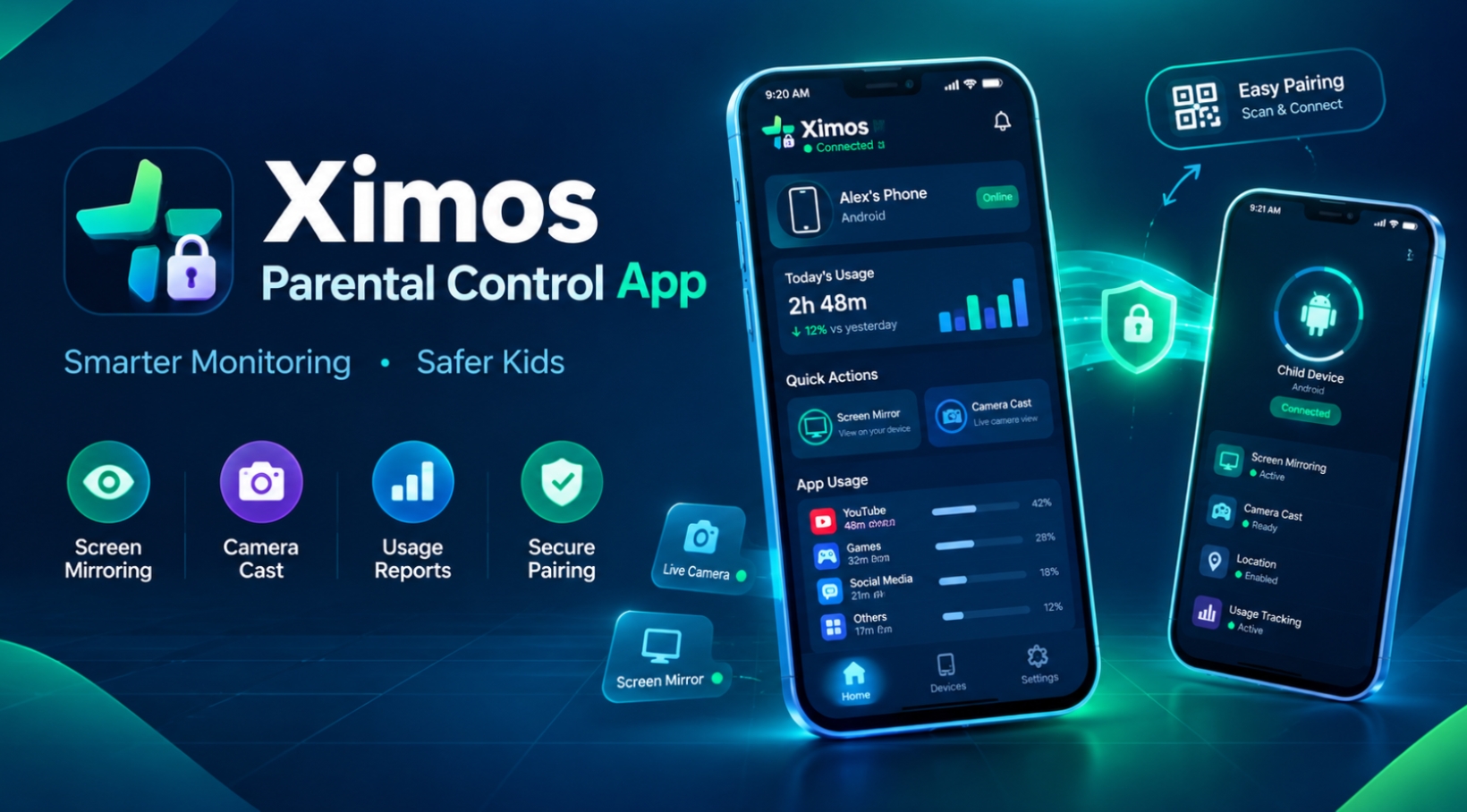
Ximos is a two-app Android system: Ximos is installed on the parent's phone (or accessed via the web dashboard at ximosapp.com/app), and XimosKid is installed on the child's device. The two apps communicate directly over an encrypted WebRTC connection.
Ximos occupies a different category from the other apps in this comparison. It does not read message content, scan social media, or perform deep app monitoring. Instead, it gives a parent real-time visibility into the device itself — the screen, the camera, and surrounding audio — alongside usage statistics and remote alert tools.
Verified features (source: ximosapp.com, ximosapp.com/uno/docs, ximosapp.com/uno/trust):
Always free, unlimited, no balance required:
- Daily screen time and per-app usage reports
- Daily Wi-Fi and mobile data usage tracking
- Daily phone unlock count
- Real-time on-screen notifications to the child's device (with optional image)
- Full-screen window overlay alerts
- One-click clipboard content send to the child's device
- URL/link push to the child's device (with a pre-send safety check)
- AI-generated plain-language summaries of dashboard data
Paid-seconds or balance features (WebRTC streaming):
- Live screen mirroring with real-time remote touch control (tap, swipe, long-press)
- Live camera streaming, front and rear, with flash control
- One-way surrounding audio listening
- Photo and video capture, stored encrypted in the cloud for 30 days (250MB total vault, not currently upgradable)
On the official roadmap but not yet shipped:
- GPS + multi-source location tracking (In Development)
- Scheduled screen-time and app-time limits (Planned)
- Content / adult website filtering (Planned)
Pricing: Ximos runs on a pay-as-you-go balance rather than a subscription. Every new account receives 720 free streaming seconds (1,080 with a referral code), which reset every 19 days at no cost. Additional seconds can be earned by watching reward ads (up to 50–60 credits/day) or through referrals. If the free system isn't enough, the minimum top-up is $1, currently via crypto. The official site states that paid balance never expires.
Based on the official site's own comparison, typical casual use works out to less than $1/month for most parents — though actual cost varies by how often live streaming features are used.
Privacy model: According to the official Trust Center and Privacy Policy, Ximos stores only three data fields server-side (device key, brand name, account email), all deleted once their job is done. Live streams travel peer-to-peer over encrypted WebRTC (AES-256 transport), meaning session media does not pass through or get retained on Ximos servers. Key XimosKid source code is publicly available on GitHub: github.com/ximexa/ximos-offical-releases.
Transparency model: XimosKid always runs under its own name and icon, with a persistent, non-dismissible foreground notification while active. Whenever a live streaming feature is turned on, a visible on-screen indicator appears on the child's device and they can stop the session from their end. This is by design and documented explicitly on the official site — Ximos does not support or enable silent, hidden monitoring.
Limitations to be aware of:
- Location tracking, content filtering, and app-time limits are not yet available — they are on the roadmap but not shipped.
- The 250MB cloud vault is not currently upgradable.
- Payment is currently crypto-only; other payment methods are listed as in progress.
- Requires installing XimosKid on the child's Android device — no iOS support found on the official site.
- Not available on Google Play; APK files are downloaded directly from the official site or APKPure.
Best for: Parents who want live, real-time visibility into the child's device (screen, camera, audio) rather than content scanning, with no subscription commitment and a strong privacy posture. Less suited to parents primarily looking for content filtering or screen-time scheduling right now, as those features are still in development.
Android Digital Wellbeing + Kids Place — Best for Minimal Setup
If the child is young (under 8–9) and the goal is simply to limit time on certain apps and prevent access to adult content in the browser, Android's own Digital Wellbeing tools — built into most Android devices — handle the basics for free without installing anything extra:
- App timers (daily limit per app)
- Bedtime / downtime scheduling
- Focus Mode (hides distracting apps temporarily)
- Dashboard showing time-per-app
For very young children, a dedicated kids launcher like Kids Place (available on the Play Store) turns the phone into a curated experience where only whitelisted apps are accessible.
Neither of these replaces a full parental control suite, but for a starter setup they require the least friction and cost nothing.
The Privacy Question: What Do These Apps Actually Store?
Privacy is one of the most under-discussed aspects of parental control apps. These apps, by their nature, collect sensitive data about a minor — and that data has to live somewhere.
Before choosing an app, parents should ask:
- What data is collected from the child's device? (Messages? App usage? Location history? Camera images?)
- Where is it stored? (On your device only? On the company's servers? In a third-party cloud?)
- Who has access to it? (Only you? The company? Third-party advertisers?)
- What happens if the company is breached, sold, or shut down?
- How long is data retained?
Apps that scan message content (like Bark) necessarily send that content or metadata to their servers for analysis. That's a deliberate trade-off — the risk-detection capability depends on it. Understanding that trade-off is important before using the product.
Apps like Ximos, which take a live-visibility approach rather than a content-scan approach, don't accumulate a stored copy of the child's message history — but they do enable real-time surveillance capabilities (screen mirroring, camera access) that are sensitive in a different way.
The safest approach, from a data-minimisation standpoint, is built-in Android tools or Family Link, which process most data locally on the device. The most comprehensive monitoring carries the most data exposure.
What "Transparent Parental Control" Means and Why It Matters
The parental control market has a complicated history. Some products have been marketed explicitly as "hidden" or "undetectable" monitoring tools — effectively spyware installed on someone else's phone without their knowledge. This is illegal in most jurisdictions when applied to another adult and ethically problematic even when applied to minors.
A growing consensus among child safety researchers and organisations suggests that transparent monitoring — where the child knows a parental control app is installed and what it can do — is more effective in the long run than covert surveillance:
- It preserves the relationship between parent and child.
- It teaches digital responsibility rather than avoidance.
- It avoids the backlash and erosion of trust that typically follows discovery of secret monitoring.
- It is legally and policy-compliant.
Every app reviewed in this article runs in a disclosed mode on the child's device. For the avoidance of doubt: this article does not cover, recommend, or endorse any app that enables covert monitoring, hides its presence, or facilitates access to another person's device without their knowledge.
If an app claims to be "undetectable," treat that as a warning sign, not a feature.
FAQ
What is the best free parental control app for Android? Google Family Link is the strongest genuinely free option with useful core features (screen time, app limits, location, basic content filtering). For parents who want live device visibility without a subscription, Ximos's non-streaming features (usage reports, alerts, clipboard, link send) are permanently free; its live streaming features use a pay-as-you-go credit system starting from 720 free seconds per 19-day reset.
Can I monitor my child's Android phone without them knowing? Technically possible with certain tools, but doing so without a minor's awareness is ethically problematic and in many jurisdictions legally ambiguous or illegal. The most defensible and effective approach is to install monitoring software with the child's knowledge, explain what it does, and treat it as a family safety measure rather than a covert operation. All apps reviewed in this article operate in a disclosed mode.
What parental control app doesn't require a monthly subscription? Google Family Link and Android Digital Wellbeing are free and subscription-free. Ximos's core monitoring and alert features are permanently free; its live WebRTC streaming features use a pay-as-you-go balance (720 free seconds on signup, refreshed every 19 days, with no subscription required).
Can parental control apps read my child's WhatsApp messages? Most cannot — WhatsApp messages are end-to-end encrypted and apps generally cannot intercept them at the message level on Android without root access. Bark accesses WhatsApp through device backup monitoring rather than direct interception. Apps like Ximos do not read message content at all; they provide screen-level visibility (what's currently on the screen) rather than deep-app data extraction.
Is there a parental control app that blocks adult websites on Android? Google Family Link provides basic safe-search filtering for Chrome and Google Search. Qustodio offers more granular website-category filtering. Ximos does not currently include a website filtering feature — it is listed as a planned future addition on the official roadmap.
At what age should I stop using parental controls? There's no universal answer. Common guidance suggests gradually reducing the level of monitoring as a child demonstrates responsible digital behaviour, typically transitioning from full monitoring toward periodic check-ins during the 14–16 age range. The goal is to build toward the child not needing external controls — not to maintain surveillance indefinitely.
Does Ximos work on iPhone? Based on the official Ximos website, both apps (Ximos and XimosKid) are Android-only APK files, available from ximosapp.com and APKPure. No iOS support was found on the official site at the time of publication.
Choosing the Right App: A Quick Decision Guide
Do you need LIVE visibility (screen, camera, audio)?
  → YES: Ximos (pay-as-you-go, no subscription)
  → NO: Continue below

Do you primarily want to DETECT RISKY CONTENT in messages/social media?
  → YES: Bark (subscription required)
  → NO: Continue below

Do you want COMPREHENSIVE FILTERING + DETAILED REPORTS across multiple devices/platforms?
  → YES: Qustodio (subscription required)
  → NO: Continue below

Is the child YOUNG (under ~10) and is a basic screen-time limit enough?
  → YES: Google Family Link (free) or Android Digital Wellbeing (built-in)
  → NO: Re-evaluate above options or combine tools
For more technical documentation on Ximos's features, permissions, and data handling, see ximosapp.com/uno/docs and ximosapp.com/uno/trust. The Ximos source code for key XimosKid components is publicly available at github.com/ximexa/ximos-offical-releases.
Leave a Comment
Comments
Loading comments...