How to Access Someone's Camera Legally & Safely in 2026: Parent Monitoring Guide
How to Access Someone's Camera Legally & Safely in 2026: Parent Monitoring Guide
If you searched "how to access someone's camera," you likely found this article for one of two reasons:
- You're a parent who wants to monitor your child's phone camera for safety reasons
- You were looking for something else, and Google thought this was relevant
This guide is only for scenario #1 — parents monitoring their own minor children's devices with legal consent and transparent disclosure. If you're looking to access someone else's camera without permission, this article won't help you, and we won't explain how to do that.
Why Parents Want Camera Access (And Why It's Complicated)
Parents often want to see what their child is doing — not out of distrust, but out of safety concern:
- Cyberbullying & unwanted contact — a parent might want to know if someone is directing the camera toward them inappropriately.
- Accidental exposure — teenagers sometimes engage in risky camera behavior without fully understanding the consequences.
- Location awareness — seeing what's around the child in real time can confirm their stated location.
- Peace of mind — knowing you can check in can reduce anxiety for both parent and child.
But here's the ethical reality: accessing someone's camera without their knowledge is illegal in most places, violates app store policies, and damages trust.
The only legal and sustainable way to do this is with the child's knowledge and consent — which sounds restrictive but actually works better in the long run than covert surveillance.
The Legal vs. Illegal Distinction
| Legal (Transparent) | Illegal (Covert) | |
|---|---|---|
| Child knows the app is installed | ✅ Yes | ❌ No |
| Visible notification when camera is active | ✅ Yes | ❌ No |
| Child can stop a session | ✅ Yes | ❌ No |
| Compliant with app store policies | ✅ Yes | ❌ No |
| Protected by law (parental rights) | ✅ Yes | ❌ No |
| Will work long-term (doesn't destroy trust) | ✅ Yes | ❌ No |
| Works on standard, unmodified Android | ✅ Yes | ❌ Requires hacking/rooting |
The reality: Covert camera access is not just unethical — it's hard to execute, easy to discover, and once discovered, it's game-over for your relationship with your child and can expose you to legal liability.
A transparent system is harder to justify at first, but it actually works.
Legal Methods to Access Your Child's Camera
There are several legitimate approaches to camera monitoring for parents. Here's what's available in 2026:
Option 1: Google Family Link (Free, Limited)
Google Family Link lets parents approve app installations and set device limits, but does not include direct camera access. It's good for preventing unauthorized app downloads but won't let you see through the camera.
Best for: Younger children (8–12) where the goal is preventing access to risky apps, not real-time monitoring.
Option 2: Bark or Qustodio (Subscription, Message-Based)
These apps monitor the content of a child's communications (texts, social media, email) and alert you to risks, but they do not provide direct camera access. They're designed around detecting problems, not seeing what's around the child in real time.
Best for: Older teenagers (13+) where trust is higher and the goal is detecting risks like grooming or cyberbullying, not surveillance.
Option 3: Ximos (Pay-As-You-Go, Live Camera Access)
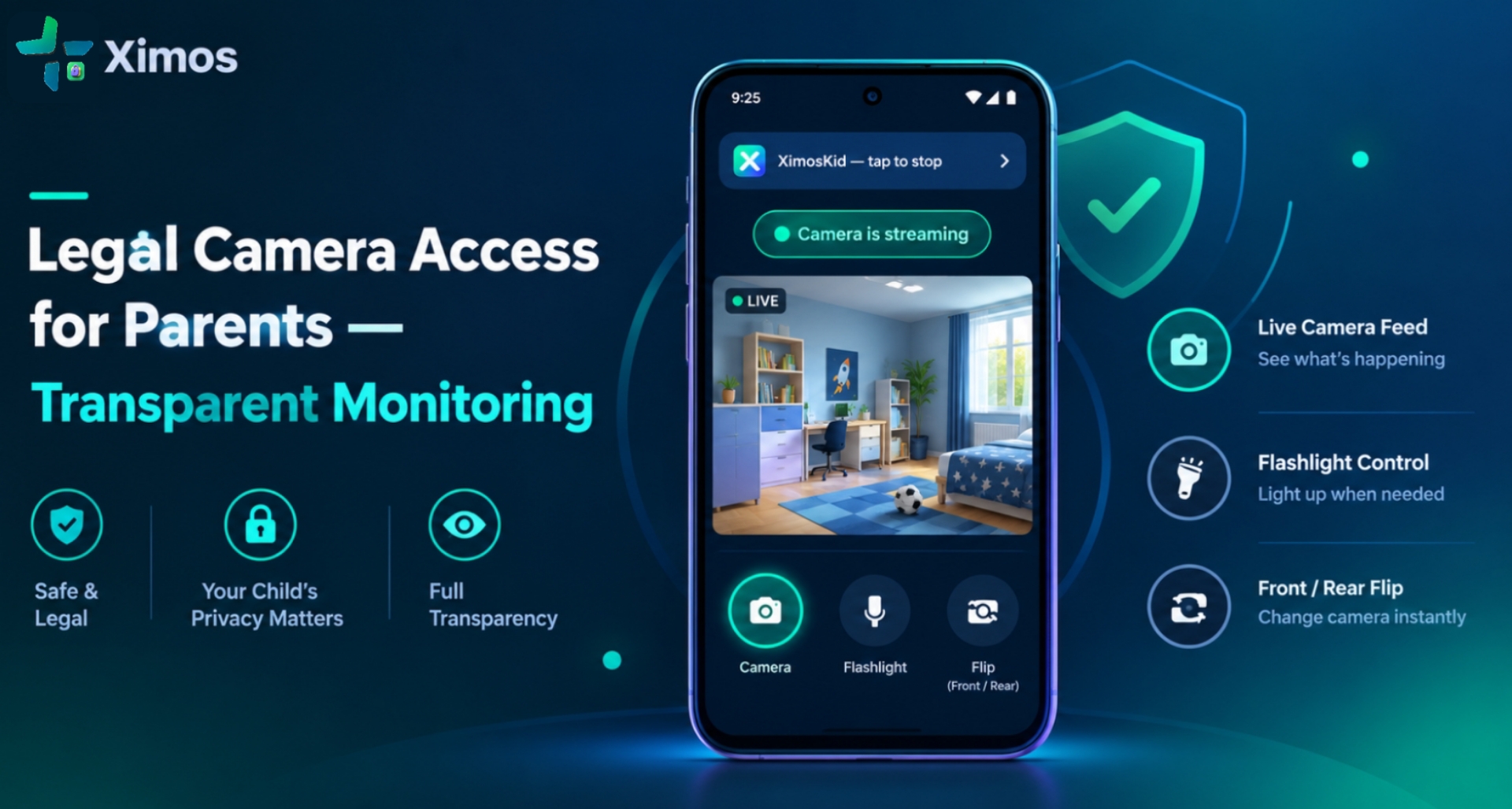
Ximos is the only widely-available parental control app on Android that provides direct, real-time camera access — but only when the child's device is equipped with XimosKid and the child's device displays an active, visible indicator that monitoring is happening.
How Ximos camera access actually works:
- Install XimosKid on the child's device — the child and parent both see the app under its own name/icon.
- Parent installs Ximos on their phone (or uses the web dashboard).
- Both sign into the same Ximos account.
- Parent opens the Ximos dashboard and selects "Camera Cast."
- Child device shows a visible notification ("XimosKid is running — tap to stop").
- On-screen green status indicator appears the entire time the parent is viewing the camera.
- Child can stop the session at any time from their own notification.
- Live camera feed reaches the parent in real time over encrypted WebRTC.
This is transparent, legal, and fully compliant with Android policy — precisely because the child knows it's happening.
Why Ximos's Transparent Model Actually Works Better Than Spyware
Parents often think hidden monitoring is better because:
- "If my child doesn't know, they won't object."
- "They'll be more honest if they don't know I'm watching."
- "I need to catch them in the act."
But research on family dynamics and digital safety suggests the opposite:
Trust is the actual safety tool. A child who knows they're monitored and agrees to it is more likely to talk to their parent about risky situations. A child who discovers secret surveillance stops trusting the parent and becomes less likely to ask for help.
Covert surveillance gets discovered. Most teenagers figure it out within weeks or months. Once discovered, the monitoring becomes useless anyway and the relationship is damaged.
Transparency teaches responsibility. A child who grows up knowing "my parent can see my camera if I'm at risk" internalizes the idea that they should be aware of their own device behavior. A child raised under secret surveillance learns only that adults lie.
You're modeling the behavior. If you teach your child that it's okay to secretly monitor them, don't be surprised when they feel justified secretly monitoring others.
Ximos's design — visible notification, child can stop it, always transparent — is built on this understanding. Yes, it's less "powerful" than hidden spyware. But it actually works.
Step-by-Step: How to Set Up Ximos Camera Access Legally
Prerequisites
- Child's Android phone (API 24 or later, roughly Android 7+)
- Parent's Android phone or a web browser
- $1 minimum account balance for full camera features (free bonus seconds also work, but see pricing section below)
Step 1: Install XimosKid on the Child's Device
- Go to ximosapp.com/app/ximoskid.html from the child's phone
- Download the XimosKid APK
- Open Settings → Security → enable "Unknown Sources" (varies by Android version)
- Tap the downloaded APK and install
- XimosKid icon appears on the home screen with the label "XimosKid"
- Launch XimosKid
Step 2: Create Account & Grant Permissions
XimosKid shows a signup/login screen
Create a new account (email + password) or log into an existing account
XimosKid will ask for permissions:
- Camera — for camera streaming
- Microphone — for audio listening (if enabled)
- Location — for GPS data (when that feature ships)
- Accessibility Service — for remote screen control
- Device Admin — to prevent accidental uninstall
- Read the XimosKid permission guide for details on what each permission does
Grant all permissions — XimosKid won't work without them
Child's device now shows a persistent foreground notification saying "XimosKid is running" with a stop button
Step 3: Install Ximos on the Parent's Device
- Go to ximosapp.com/app/ximos.html from the parent's phone
- Download the Ximos APK and install (same process as above)
- Launch Ximos
Step 4: Log In & Connect
- Ximos login screen appears
- Log in with the same email/password you used on XimosKid
- Ximos dashboard loads
- You'll see the child's device listed under "Devices"
Step 5: Access the Camera
- Tap the child's device
- Tap "Camera Cast" or the camera icon
- A live camera feed appears on your screen
- On the child's device, a green status indicator and "Camera is streaming" notice appears
- Parent can:
- Flip between front and rear cameras
- Toggle flashlight on/off
- View the live feed in real time (latency <85ms)
- Child can stop the session by tapping "Stop" on their notification
Step 6: Alternative: Web Dashboard
You don't need the Ximos app on your phone. Log into ximosapp.com/app from any web browser:
- Go to ximosapp.com/app
- Log in with your account credentials
- Select the child's device
- Tap "Camera Cast"
- Live camera feed appears in your browser
Understanding the Permissions: What Ximos Actually Accesses
Parents often worry: "If I install this app, what is Ximos reading?"
Here's what XimosKid actually accesses on the child's device:
| Permission | What it does | What it does NOT do |
|---|---|---|
| Camera | Accesses live camera feed when parent starts a session | Does NOT read photos already on the device |
| Microphone | Records audio from around the device during ambient listening | Does NOT read message content or call recordings |
| Location | Will provide GPS + network location when feature ships | Does NOT read location history from other apps |
| Accessibility Service | Allows remote touch control during screen mirroring | Does NOT read notifications or app content |
| Device Admin | Prevents accidental app uninstall; allows device lock/wipe if configured | Does NOT auto-lock the device without parent action |
What Ximos does NOT read:
- Message content (texts, Whatsapp, Telegram, etc.)
- Social media DMs or posts
- Browser history
- Photos on the device (only live camera feed)
- Call recordings
This is a deliberate design choice. Ximos gives you real-time visibility into what's around the device (screen, camera, audio) rather than reading the content of stored data. This means:
- Less data stored server-side (only 3 fields: device key, brand name, email)
- No database of your child's messages that could be breached
- More privacy for both parent and child
- Lighter load on the device
Pricing: Is Camera Access Free?
Camera access itself draws from your account balance or free bonus seconds:
- New account bonus: 720 free seconds (12 minutes of camera streaming)
- Bonus refresh: Every 19 days, another 720 free seconds
- Cost per second: Extremely cheap once you have a balance (fraction of a cent per second)
- Pay-as-you-go top-up: Minimum $1 (never expires)
- Free earning: Watch reward ads at w1.ximosapp.com to earn more seconds
For typical parental checking-in (a few minutes per day), the 720-second bonus that resets every 19 days often covers the full month.
Privacy & Data: Where Does Your Camera Feed Go?
This is the part parents care most about — and rightfully so.
How Ximos handles your camera feed:
- Direct peer-to-peer: The camera feed goes directly from the child's device to the parent's device over encrypted WebRTC (AES-256 DTLS-SRTP).
- Server never sees it: Ximos's servers only help the two devices find each other (WebRTC signaling). They do not relay, store, or see the actual camera feed.
- Automatic deletion: Session data is deleted once the session ends. There's no recording or history of past sessions.
- No third parties: The feed never goes to advertisers, third-party analytics, or anyone else.
Server-side storage is minimal:
- Device key (encrypted identifier)
- Brand name (what kind of phone)
- Account email
That's it. Not the feed, not the child's location history, not message content.
Independent verification: Key portions of XimosKid's source code are publicly available on GitHub: github.com/ximexa/ximos-offical-releases. This means the privacy claims are auditable, not just marketing.
Red Flags: What to Avoid
If you're shopping for parental control apps and you see these claims, avoid them:
- "Hidden" or "undetectable" — This means surveillance without consent, which is illegal.
- "No notification on child's device" — Red flag for covert monitoring.
- "Child can't stop it" — Another sign of non-consensual surveillance.
- "Reads all messages without asking" — Violates app store policies and is often illegal.
- "Works without installing an app on the child's device" — Technically impossible; any legitimate monitoring requires some form of consent/installation.
Ximos does not claim any of these things, precisely because they're unethical and ineffective.
The Conversation You Need to Have With Your Child
Before installing XimosKid:
- Explain why: "I want to make sure you're safe. I can see your camera and screen when you're in risky situations."
- Be honest about the limits: "I can't read your messages or see your photos. I can see what's on your screen in real time and hear the sound around you."
- Explain the trust model: "I'll check in sometimes, but not constantly. If I trust you, I'll use it less. If I see something risky, we'll talk about it."
- Make it about safety, not control: "This is like me picking up the phone when you call — I'm not trying to control you, I'm making sure you're okay."
- Set boundaries: "I won't use this to check on you during school or at a friend's house unless something feels off."
This conversation is awkward. It's also necessary, and it's what makes the difference between parental monitoring (which works) and surveillance (which backfires).
FAQ
Is it legal to use Ximos to monitor my child?
In most jurisdictions, yes — parents have the legal right to monitor their minor children's devices, provided the monitoring is transparent and the child knows it's happening. Covert monitoring is legally ambiguous and often illegal. Check your local laws, but transparent monitoring is almost always protected under parental authority.
Can my child uninstall XimosKid?
Yes, but they can do so only after dismissing the device-admin prompt that asks "Allow XimosKid to be a device admin?" If they tap "Yes," the app adds friction to uninstalling. If they tap "No," they can uninstall anytime. This is intentional — XimosKid doesn't prevent uninstall, it just makes it slightly harder.
Will my child know I'm watching?
Absolutely yes. XimosKid shows a persistent notification whenever any monitoring feature is active, and a green status dot appears on-screen during camera streaming. This is by design.
What happens if my child removes the SIM card or connects to a different Wi-Fi network?
XimosKid still works over any internet connection (Wi-Fi or mobile data). Removing the SIM doesn't disconnect it if Wi-Fi is available.
Does Ximos work on iPhone?
No — Ximos and XimosKid are Android-only. There is no iOS version.
What if I lose access to my Ximos account?
You can recover it with the email address you signed up with. Ximos support is available at ximosapp.com/feedback.
Can I use Ximos to monitor an adult?
No. Ximos is explicitly designed for parents monitoring their own minor children with consent. Using it on an adult without permission is illegal surveillance.
Is there a subscription fee for Ximos?
No. Ximos uses a pay-as-you-go balance model, not a subscription. You only pay for the seconds you actually stream. Most casual use is covered by the free 720-second bonus that resets every 19 days.
The Bottom Line
If you searched "how to access someone's camera," you probably want one of these things:
- To monitor your child's phone safely & legally → Use Ximos with transparent disclosure and consent
- To check in on a family member in their home (security camera) → Use standard security camera apps (Ring, Wyze, etc.)
- To catch someone doing something wrong without them knowing → This article won't help, and we won't provide that guidance
If you're a parent, Ximos's transparent model isn't the easiest path — but it's the one that actually works. Your child will know you're monitoring. Yes, that's harder. But a teenager who knows you're watching and agrees to it is infinitely safer — and the relationship survives — compared to a teenager who discovers hidden surveillance and stops trusting you entirely.
Get Started
- Website: ximosapp.com
- Download Ximos (Parent App): ximosapp.com/app/ximos.html
- Download XimosKid (Child App): ximosapp.com/app/ximoskid.html
- Web Dashboard: ximosapp.com/app
- Technical Docs: ximosapp.com/uno/docs
- Earn Free Seconds: w1.ximosapp.com
- Feedback/Support: ximosapp.com/feedback
Ximos is built for transparent, consensual parental monitoring of minors. It is not designed for, and should not be used for, covert surveillance. See the full Terms of Use for permitted use cases.
Leave a Comment
Comments
Loading comments...